AOMEI Partition Assistant 10.10.01 For Windows (2026)
10.10.01Updated
Virus FreeNo AdwareSafe DownloadLab Tested
AOMEI Partition Assistant is a powerful and easy-to-use partition manager for Windows. Download AOMEI Partition Assistant now using the direct download link. This free disk management tool helps users
Virus-free • Verified by FreewareLab
Download AOMEI Partition Assistant Disk Partition Tool - Freewarelab
AOMEI Partition Assistant is a powerful and easy-to-use partition manager for Windows. Download AOMEI Partition Assistant now using the direct download link. This free disk management tool helps users
5.0(2)
0 downloads
Jan 24, 2026
AOMEI Partition Assistant 10.10.01 For Windows (2026) Video Overview
Watch this video to learn more about AOMEI Partition Assistant 10.10.01 For Windows (2026) features and how to use it.
AOMEI Partition Assistant
AOMEI Partition Assistant is the best and reliable disk management software. It helps you to fully control and manage hard disk external storage devices, SSDs easily without losing data. It is the best application for new and expert users. If you want to manage disk space or upgrade to a new drive to fix storage issues. AOMEI is the best option.
What Is AOMEI Partition Assistant Used For?
It is mainly used to manage disk space on Windows computers. It helps fix low disk space issues, organize hard drives, and prepare disks for new operating systems. Many users also use it to upgrade from HDD to SSD or to fix partition problems that Windows Disk Management cannot handle.
AOMEI Partition Assistant Editions
- AOMEI Partition Assistant is available in different versions:
- Standard (Free Version): Basic partition management features
- Professional Edition: Advanced tools like OS migration and disk cloning
- Server / Unlimited Edition: Designed for businesses and servers
Key Features of AOMEI Partition Assistant Professional Edition
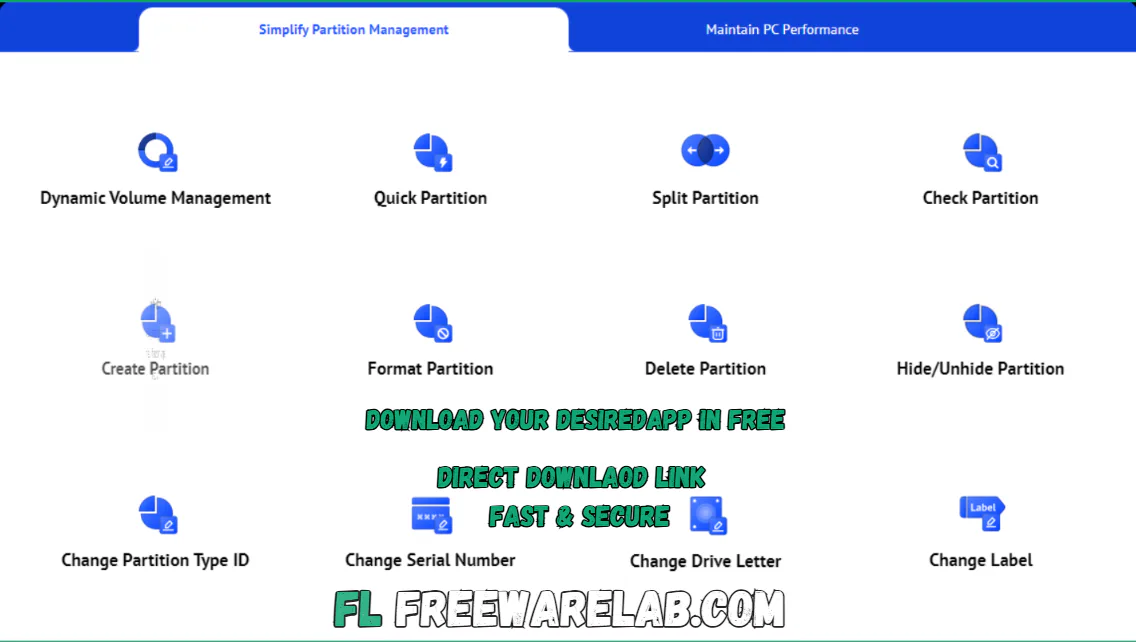
- You can create, resize, move, merge, split, copy, and format partitions.
- Extend system partitions without losing data.
- Optimize disk space usage with safe operations.
- Migrate Windows OS to SSD or HDD smoothly.
- No need to reinstall Windows or applications
- Ideal for system upgrades and performance improvements
- Convert system disks from MBR to GPT without data loss
- Fully prepares your PC for Windows 11 upgrade
- Move installed programs and folders between drives
- Free up space on your system drive easily
- It can recover lost deleted or inaccessible partitions.
- Restore important data from damaged or corrupted disks
- Surface test to detect bad sectors
- Improve the performance of old or overloaded drives.
- Securely erase HDDs and SSDs to factory settings.
User Interface & Ease of Use
AOMEI Partition Assistant Pro offers a clean and user-friendly interface. It provides the primary features for managing a hard disk. After installation the software automatically scans and detects all connected storage devices including uninitialized disks.
Built-in Wizards & Tools
- One-click wizard tools for common tasks
- Disk Clone, Quick Partition, Rebuild MBR
- Wipe Hard Drive, Disk Surface Test, Secure Erase
- NTFS/FAT32 converter and partition recovery tools
- Every action clearly shows its impact before execution, ensuring maximum data safety.
Supported Devices & Technologies
Storage Device Support
- HDD, SSD, SSHD
- External hard drives (USB 1.0/2.0/3.0)
- Flash drives, thumb drives, PC cards
- IDE, SATA, SCSI, iSCSI, FireWire
Advanced Compatibility
- Hardware RAID (RAID 0, 1, 5, 10)
- MBR & GPT disks over 16TB
- Supports up to 128 disks per system
- Sector sizes: 512, 1024, 2048, 4096 bytes
- Virtual disks (VMware, VirtualBox, Virtual PC)
- UEFI / EFI boot support
Supported File Systems
- NTFS
- FAT32 / FAT16 / FAT12
- exFAT / ReFS*
- Ext2 / Ext3 / Ext4*
- BitLocker and other file systems
Why Choose AOMEI Partition Assistant Standard edition?
It is popular because it is simple and safe to use. The interface is clean and beginner-friendly, and most operations are just a few clicks away. It works faster than Windows Disk Management and supports modern SSDs and large hard drives.
Common Problems You Can Fix With It
AOMEI Partition Assistant can help solve many problems, such as low disk space on the C drive, disk not detected issues, OS migration to an SSD, and partition errors. It is very helpful when upgrading or repairing storage.
Best Alternatives to AOMEI Partition Assistant
MiniTool Partition Wizard
MiniTool Partition Wizard is a popular disk management tool that offers many features similar to AOMEI. It lets you resize, move, merge, split, format partitions, and even convert between MBR and GPT.
It also supports disk cloning and OS migration.
EaseUS Partition Master
EaseUS Partition Master is another strong alternative with a clean and beginner-friendly design. It supports changing partition sizes, merging partitions, converting disk types, and migrating the OS to an SSD.
DiskGenius
DiskGenius blends partition management with data recovery features.
In addition to resizing, creating, and formatting partitions, DiskGenius can recover lost files and repair corrupted partitions.
Final Thoughts
It is an excellent choice for users who want full control over their storage devices. It is a safe partition tool supports OS migration and offers broad hardware compatibility. It stands out as a dependable disk management solution for Windows users seeking performance flexibility and peace of mind.
How to Download AOMEI Partition Assistant
How to Download
- Click the Download button.
- Wait for the setup file to finish downloading.
- Double-click the downloaded setup file.
- Choose your language.
- Click Next and accept the license agreement.
- Click Install.
- After installation, click Finish to open the software.
How to Use
Resize or Move a Partition
- Open AOMEI Partition Assistant
- Right-click the partition you want to resize
- Select Resize/Move Partition
- Drag the slider to increase or decrease size
- Click OK, then Apply to confirm
Merge Two Partitions
- Right-click the main partition
- Choose Merge Partitions
- Select the partition you want to merge
- Click OK and then Apply
Create a New Partition
- Right-click unallocated space
- Select Create Partition
- Choose size, file system, and drive letter
- Click OK, then Apply
Clone Disk (HDD to SSD)
- Click Clone Disk from the menu
- Select source disk
- Select target disk (SSD)
- Follow on-screen steps
- Click Apply to start cloning
AOMEI Partition Assistant Pros and Cons
Pros
Simple and user-friendly interface
Powerful partition and disk tools
Safe OS migration feature
Strong data protection mechanisms
Supports SSD and HDD optimization
Cons
Available for Windows only
Free version has limited features
No real-time disk monitoring
Slower operations on very large drives
AOMEI Partition Assistant System Requirements
OS: Windows 11, Windows 10, Windows 8 / 8.1, Windows 7
Processor: 1 GHz or faster
RAM: 1 GB
Storage: 200 MB
Display: 1024 × 768 resolution
Other: NTFS, FAT32, exFAT, EXT
AOMEI Partition Assistant Frequently Asked Questions (FAQs)
1Is AOMEI Partition Assistant free?
Yes, it has a free version with basic features.
2Is it safe to resize partitions?
Yes, it performs operations safely without data loss.
3Can it migrate Windows to SSD?
Yes, this feature is available in the paid version.
4Does it support Windows 11?
Yes, it fully supports Windows 11.
5Is it good for beginners?
Yes, the interface is very simple and user-friendly.
AOMEI Partition Assistant 10.10.01 Changelog
Latest version changes and improvements
- Improved overall program stability
- Fixed minor bugs for smoother performance
- Better compatibility with Windows systems
- Faster disk and partition operations
- Enhanced safety when resizing and moving partitions
Previous Versions
AOMEI Partition Assistant 10.10.0
Dec 31, 202584.5 MB
Package Size
84.6 MB
5.0
2 reviews
Direct & Safe Download
Buy License Officially
Virus FreeVerifiedFast
Product Information
File Name
AOMEI Partition Assistant 10.10.01 For Windows (2026)
Developer
AOMEI
License
Freeware
Total Downloads
0
Platform
Windows
4
Related Apps
Similar software you'll love
#1
EaseUS Partition Master 19.23.0 for Windows (2026)
EaseUS Partition Master 19.23.0 build 202512171740 is a powerful and easy-to-use disk partition management tool. It is best for Windows users.
v19.23.0175.0
#2
Parted Magic 12.32 for Windows (2026)
Parted Magic delivers powerful tools to get the job done. Direct Download Link safe & secure. Easily resize, move, copy, grow, or shrink partitions using trusted utilities like GParted and Parted, plu
v12.32205.0
#3

MiniTool Partition Wizard free 13.5 for Windows (2026)
MiniTool Partition Wizard is a free and powerful partition manager for Windows. Easily resize, create, format, and recover partitions to boost disk performance.
v13.5 75.0
#4
Hard Disk Sentinel Pro 6.30.8 Download for Windows 2026
Download Hard Disk Sentinel Pro with a Direct Link is the best software for checking the health temperature of your hard disk SSD. It runs in the background and monitors your drives continuously.
v6.30.845.0
Related Tags
Explore more software in these categories
AOMEI Partition Assistant 10.10.01 For Windows (2026) Tested & Verified
by FreewareLab Security Team
SECURE
0/72
VirusTotal
Jan 24
Test Date
Win 11
Platform
100%
Trust Score
No MalwareNo AdwareClean InstallFeatures Verified
A
Ash ColemanVerifiedTOP
Software Security Analyst at FreewareLab
Our Verification Process
Security Scan
Every file scanned with 72+ antivirus engines via VirusTotal
Installation Test
Clean install verified - no bundleware, adware, or PUPs
Feature Verification
All advertised features tested and confirmed working
5.0
Excellent
2 ratingsRating Breakdown
5
2(100%)
4
0
3
0
2
0
1
0
Write a Review
for AOMEI Partition Assistant 10.10.01 For Windows (2026)
0 Reviews
Click to share your experience